Why Accessible Forms Matter
Forms are how people sign up, log in, pay for things, book appointments, and contact support. If a form is not accessible, users with disabilities may not be able to complete these basic tasks.
Accessible forms make sure that everyone can understand each field, move through the questions, and fix mistakes when something goes wrong.
Labels and Inputs
Every form control needs a label. Labels help sighted users and let screen readers announce what the input is for. Clicking the label should also focus the matching input.
          <label for="email">Email address</label>
          <input id="email" name="email" type="email" required />
Avoid relying only on placeholder text as the label. Placeholders disappear when users start typing, which can make it hard to remember what the field meant.
Grouping Related Fields
When you have a set of related options, such as radio buttons or checkboxes,
use <fieldset> and <legend> so it is
clear they belong together.
          <fieldset>
          <legend>Preferred contact method</legend>
          <label>
          <input type="radio" name="contact" value="email" />
          Email
          </label>
          <label>
          <input type="radio" name="contact" value="phone" />
          Phone
          </label>
          </fieldset>
Help Text and Error Messages
Instructions and error messages should be clearly connected to the fields they describe. Users should not have to guess what went wrong.
<label for="username">Username</label>
<input
  id="username"
  name="username"
/>
<p id="username-help">Choose a name between 4 and 12 characters.</p>
<p id="username-error">Usernames cannot contain spaces.</p>
Error messages should be specific so users know how to fix the problem instead of just seeing “Invalid input.”
Keyboard Navigation
Many people fill out forms using only the keyboard. The Tab key should move through fields in a logical order, and buttons should be reachable without a mouse.
Avoid changing the natural tab order by adding large positive
tabindex values. Let the browser follow the normal DOM order
whenever possible.
Example: Simple Accessible Form
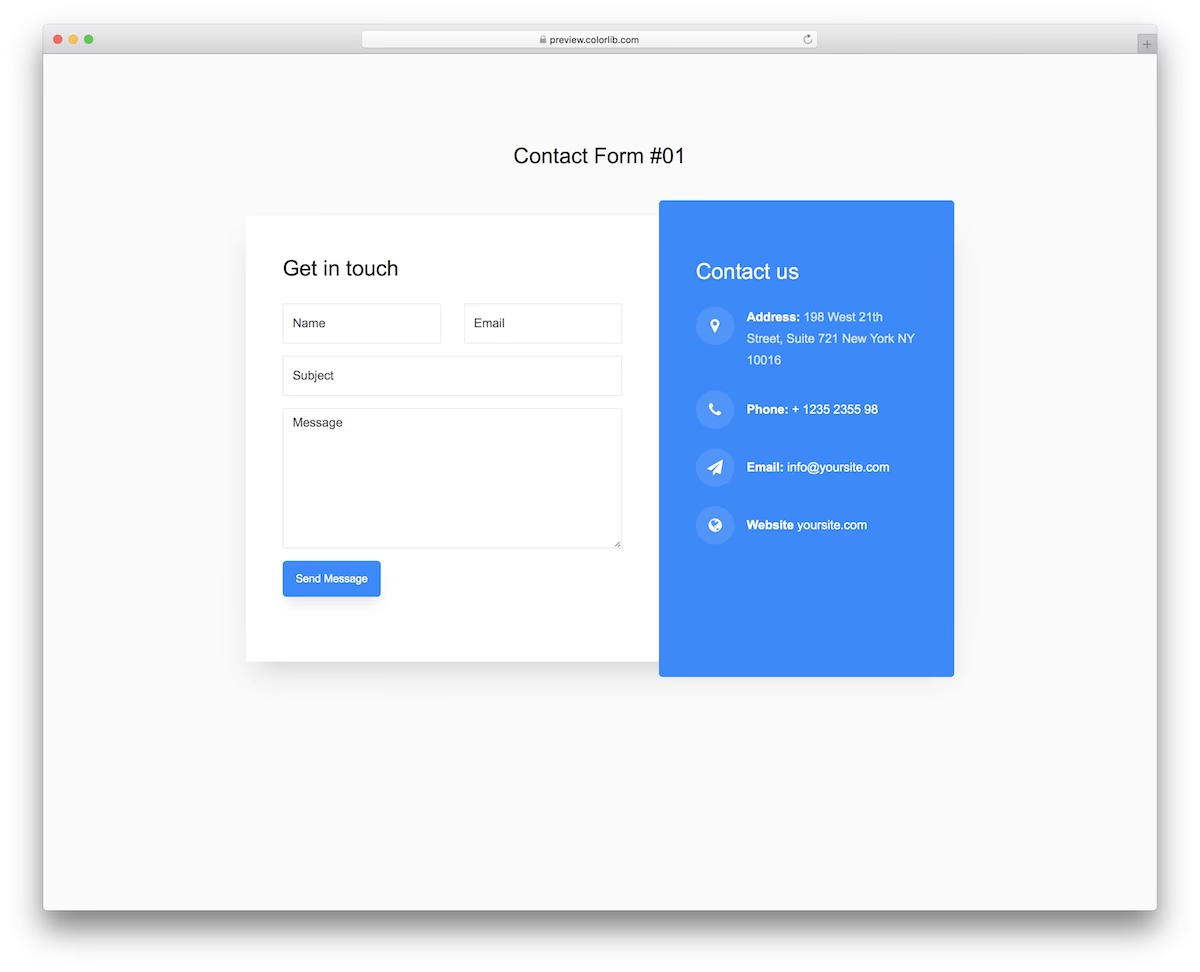
This small form uses labels, clear grouping, and keyboard-friendly controls: